Last updated 11 August 2026. This page was reviewed on that date. Prices, rates and opening hours change often in Singapore — confirm anything that matters directly with the business before you travel or spend.
Quick answer: Five furniture brands operating in Singapore, spanning budget to luxury: FURNITUREMART.SG (budget online retailer), Comfort Design Pte Ltd (homegrown, ~40 years, multiple industry awards), NITORI (Japanese retailer, Singapore debut 2022), Star Living Pte Ltd (mega-store since 1981, 8 in-house brands), and Space Furniture Pte Ltd (luxury designer furniture, Singapore showroom since 2001).
Wake up. Your flat says more about you than your car. Get the right pieces in and people notice without you saying a word. This list cuts through the noise so you walk into a showroom knowing exactly what to look for. Choose right, and your home does the talking while you just stand there, looking good.

This list covers five furniture brands operating in Singapore, drawn from company filings, official websites, and independent review platforms. Each entry includes verified registration details, product range, and contact information to help you compare options across budget levels.
1. FURNITUREMART.SG

Registered entity: sole proprietorship, registered 2010.
Online-only, so price is right. But before tapau, measure your lift and door—HDB rules say furniture must fit without hacking. Upholstered items? Ask for the SCDF fire-compliance label, just in case. Delivery to void deck only? That one, check with your town council. Solid choice for budget, but don’t get caught out. This one can, if you do your homework.
FURNITUREMART.SG is an online furniture retailer positioned around affordability, offering furniture and mattresses for homes and offices.
Products or Services
The brand offers furniture for every room, including sofas, beds, wardrobes, dining sets, and office desks, plus mattresses and home accessories. Notable offerings include budget living-room packages (L-shaped sofa, coffee table, and TV console set) and bedroom sets with mattresses and bed frames.
Recognition
FURNITUREMART.SG’s pricing and product range are commonly cited positively by customers. Independent review platforms also show a recurring pattern of complaints about delivery timing and product-quality consistency on some orders, alongside customers reporting smooth, on-time experiences on others — a mixed pattern worth being aware of before ordering higher-value items.
Contact Information & Location
- Phone: 6789 7035
- Email: [email protected]
- Address: 61 Yishun Industrial Park A #03-03, Singapore 768767
- Operating Hours: 12PM–6PM (closed every Thursday)
Suits the first-timer who wants everything landed without a chase. Order online, and the big pieces show up while you carry on with life. Your flat looks pulled together quickly, and that’s the point: you want guests to think you have taste without trying.
Website: FURNITUREMART.SG
2. Comfort Design Pte Ltd

Big showroom, decades in the game. Custom sofa? Wait for offer, then chope. Fabric must have fire certificate—SCDF spot-check sometimes. If you stay condo, MCST want mover’s deposit and time slot. No permit needed for free-standing pieces, just don’t block the corridor. Workmanship solid; can buy. Delivery team knows their way around tight HDB lifts.
Comfort Design is a homegrown Singapore furniture brand with close to 40 years in the market, operating a 32,000 sq ft showroom in Eunos.
Products or Services
Its range includes sofas, dining tables, beds, and office chairs, with customisation options available. Standout products include the Streese Electric Extendable Sofa, Sintered Stone Dining Table, and Stellar Ergonomic Office Chair.
Recognition
Comfort Design has been recognised with the Singapore Quality Class, Top Brand Award (2015), Enterprise 50, and Singapore Prestige Brand Award, and holds bizSAFE and Greenguard accreditation. It has been featured in local media including Qanvast and The Honeycombers.
Contact Information & Location
- Address: 110 Eunos Ave 7, Comfort Design Building, Singapore 409573
- Showroom Tel: +65 6747 4809
- Office Tel: +65 6747 7217
- Email: [email protected]
- Showroom Hours: Mon–Sat 9am–6pm; Sun & selected PH 10am–6pm
- Self-Collection Hours: Mon–Fri 10am–11:30am, 1pm–5pm; Sat 10am–11:30am; closed Sun & PH
Walk into that Eunos showroom when you need to see and sit before you buy. Customisation means your sofa fits your exact wall. Bring your floor plan; let them work out every centimetre. Leave knowing your living room will look sharp and feel expensive without anyone guessing the cost.
Website: Comfort Design Pte Ltd
3. Nitori Retail Singapore Pte Ltd

Japanese flat-pack, shiok for small BTO. No sweat fitting into MRT or lift. No SCDF drama for low-risk items like shelves. But sofa or mattress? Confirm fire label is sewn on, not just sticker. Orchard showroom—atas feel, but price still can. Wait for opening promo. This one, good for DIY kakis. Just don’t expect assembly included.
Nitori is a Japanese furniture and home goods retailer that opened its first Singapore outlet at The Heeren on Orchard Road on 31 March 2022, occupying the entire fourth floor (about 31,600 sq ft).
Products or Services
Nitori’s collection includes sofas, dining furniture, bedroom sets, kitchenware, and home accessories, organised under five design themes: Simple, Natural, Vintage, Feminine, and Japanese Modern. Notable collections include the N-Cool series for mattresses and Superlight kitchen dining ware.
Recognition
Since its 2022 Singapore launch, Nitori has drawn positive local media coverage (including Mothership and Home & Decor Singapore) praising its showroom scale and price-to-quality positioning.
Contact Information & Location
- Address: 260 Orchard Rd #04, COURTS Nojima The Heeren, Singapore 238855
- Contact: Via contact form
- Operating Hours: Daily, 11AM–10PM
Go to The Heeren when you want your whole flat to feel planned. The five themes mean you pick a lane—Natural, Vintage, whatever—and everything clicks. Grab kitchenware, a sofa, and your evening is sorted. Your home presents as a single idea, not a pile of separate buys.
Website: Nitori Retail Singapore
4. Star Living Pte Ltd

One roof, eight brands. Kiasu can, but don’t buy all same day. Book your HDB lift early, and check MCST if condo—some only allow weekday moving. Furniture all local stock, so fire compliance settled. Price? Some brands atas, some budget. My verdict: go weekday, less crowd, better service. Delivery guys will chope your void deck slot.
Star Living, part of the Star International group, has operated in Singapore since 1981 as a one-stop mega-store housing eight of the group’s own signature brands under one roof at its Sungei Kadut headquarters.
Products or Services
Its range spans sofas, dining chairs, coffee tables, TV consoles, and more across over 1,700 SKUs. The group’s eight in-house brands are Star, Mondi Lifestyle, LUCANO, JotterGoods, Aartical, BEDz Store, Serenade, and Star Home Essentials, offering both classic and contemporary designs.
Recognition
With over four decades in business, Star International also operates retail showrooms in Taiwan and Malaysia in addition to Singapore, alongside in-house design and manufacturing capabilities.
Contact Information & Location
- Address: 21 Sungei Kadut Street 2 #07-01 Star International, Singapore 729238
- Phone: +65 6269 2022
- Fax: +65 6368 1930
- Email: [email protected]
- Operating Hours: Mon–Thu & Sat 9am–6pm; Fri 9am–5:30pm
Drive up to Sungei Kadut when every room needs attention. Eight in-house brands under one roof means your pieces look like they belong together. Walk in, choose, and you’re out with a complete plan. That kind of efficiency is attractive—it shows you know how to use a Saturday.
Website: Star Living Pte Ltd
5. Space Furniture Pte Ltd

Atas design, but check the fine print. Imported fabric sofa must have SCDF fire certificate—if not, you cannot bring into some condos. MCST will ask for documentation. Price first? Wait for sale, margin is high. Delivery team very pro, will handle white-glove. Just make sure your lift can take the crate. This one, for those who know what they want.
Space Furniture is a contemporary-design furniture retailer with showrooms in Sydney, Melbourne, Brisbane, Singapore, and Kuala Lumpur. Its Singapore showroom, its first in Asia, has operated since 2001 and spans roughly 40,000 sq ft, representing over 30 luxury design brands.
Products or Services
Its curated collection features high-end sofas, dining tables, lighting, and accessories from globally recognised designer brands, including names such as B&B Italia and Vitra.
Recognition
Space Furniture describes itself as South-East Asia’s largest retailer of contemporary designer furniture, and its architect-designed showroom and brand roster have been featured in design and lifestyle publications.
Contact Information & Location
- Registered Address: 77 Bencoolen Street, Singapore 189653
- Phone: +65 6415 0000
- Email: [email protected]
- Operating Hours: Daily, 10:30am–8:00pm
Walk into the Singapore showroom when you’re ready to invest in pieces that announce themselves. The 40,000 sq ft teaches you proportion and material. Pick a few items that make guests pause—a Danish dining table, Italian lighting. Your home shifts from nice to memorable, and that upgrade changes how people see you.
Website: Space Furniture Pte Ltd
About this list
This list was compiled from company registration filings, official brand websites, and independent review platforms. Company registration details (UEN, incorporation dates) were cross-checked against ACRA-sourced business registries. Where a brand’s customer feedback pattern included a documented mix of praise and complaints, that mix is reflected rather than presenting only the positive side.
Key Highlights Table
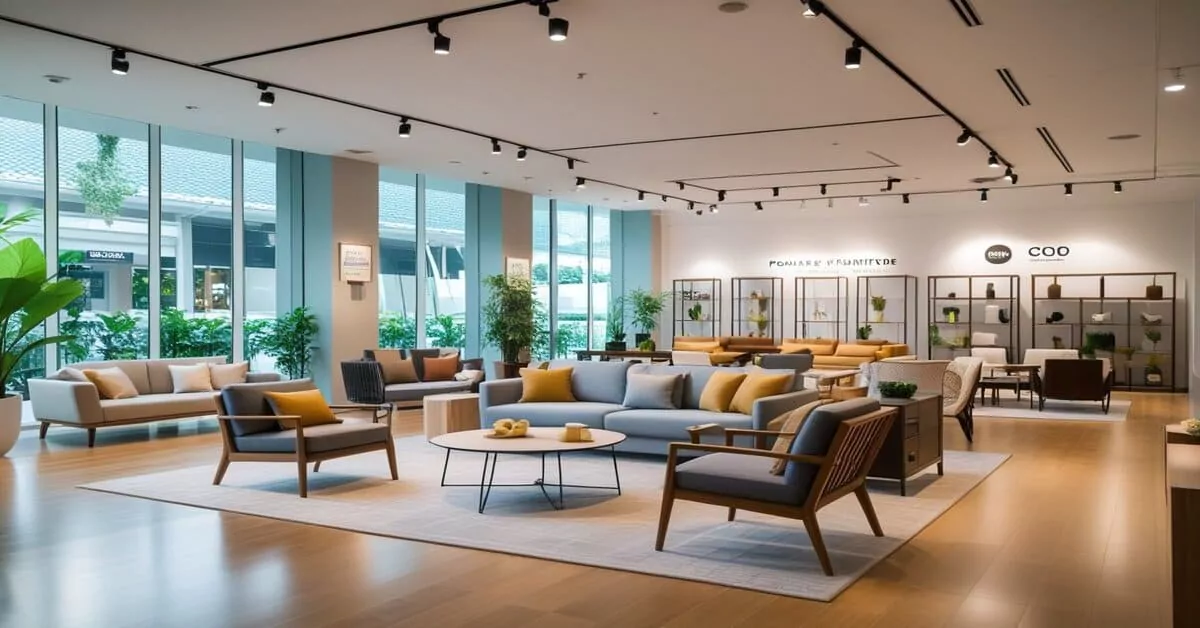
Stepping through the doors, you notice the thoughtful curation of items that makes browsing feel unhurried and personal. The layout invites you to linger, discovering pieces that seem chosen just for your home or wardrobe. Engaging with the displays, you encounter a mix of timeless charm and modern sensibility, turning a casual stop into a moment of genuine inspiration. It is the kind of place where every corner offers a quiet delight, leaving you with the impression of having uncovered something truly special.
| Brand | Positioning | Key Services | Unique Feature |
|---|---|---|---|
| FURNITUREMART.SG | Budget online retailer | Sofas, beds, wardrobes, dining, mattresses | Budget living-room and bedroom packages |
| Comfort Design Pte Ltd | Homegrown mid-range/premium | Sofas, dining tables, beds, office chairs, customisation | Singapore Quality Class, Enterprise 50, SPBA |
| Nitori Retail Singapore | Japanese affordable-quality | Sofas, dining, bedroom, kitchenware | 31,600 sq ft flagship at The Heeren |
| Star Living Pte Ltd | Mega-store, mid-range to premium | Sofas, dining, coffee tables, TV consoles | 8 in-house brands under one roof since 1981 |
| Space Furniture Pte Ltd | Luxury designer furniture | Sofas, dining tables, lighting, accessories | 40,000 sq ft showroom, 30+ luxury brands |
Disclaimer: Information current as of July 2026, compiled from company websites, ACRA-sourced business registries, and independent review platforms. Details such as pricing, hours, and contact numbers may change; contact the brand directly to confirm before purchasing. If you find any errors or have concerns about this content, please let us know so we can address them promptly.